 Shipped
Start here
Set up the Shipped connector
Give your agent access to one workspace and the app folder you choose.
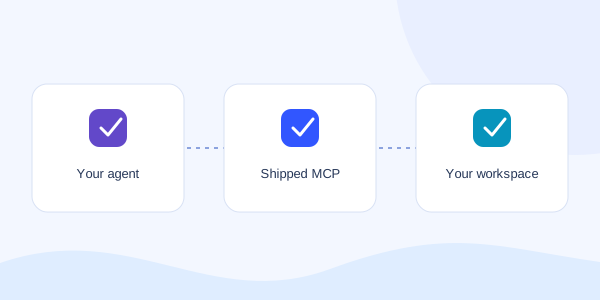
How the connection works
MCP lets your coding agent call Shipped tools. The connector runs on your computer and sends authenticated requests to Shipped over HTTPS. Your token identifies your workspace. SHIPPED_WORKSPACE_ROOT limits which local folder the connector can package.
The API address is https://app.shippedit.io. It is not a remote MCP server URL. Choose a local command, also called stdio, in your agent’s configuration.
Prepare the connector
- Use your provided Shipped Platform source checkout. Install Node.js 24 and the pnpm version specified in its package.json.
- Run pnpm install --frozen-lockfile from Shipped Platform.
- Find the absolute path to Node with command -v node. Use that path in your agent configuration.
- Replace the two Shipped Platform paths and the app-folder path in the setup example. Paths can contain spaces; keep the example’s quoting.
Keep the token private
In the portal, open Connect agent and create a token. The setup examples read SHIPPED_API_TOKEN from the environment available to your coding agent. Set it with your local secret manager or private shell environment, then restart the agent.
Desktop apps do not always inherit variables from your terminal. If the token is missing, configure the environment for the process that actually launches your agent. Keep real token values out of chats, source files, screenshots, and shared configuration.
The connector can read project state and deploy with the permissions granted to its token. Credit approvals, purchases, spending-limit changes, and paid address changes also need billing permission. Revoking a token stops future requests; it does not undo an already accepted operation.
Check the connection
Look for inspect_project and billing_status in your agent’s Shipped tool list. A read-only check confirms the account and workspace before you deploy.
Show my Shipped projects and credit balance.
Do not deploy, purchase anything, or change settings.