 Shipped
Manage your app
Update and restore releases
Ship changes, follow their progress, and restore a compatible release.
Ship an update
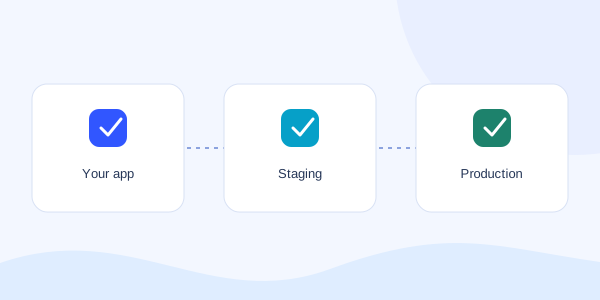
Make the change in your app folder, then ask your agent to plan an update for the existing project. Review the plan and cost. Shipped checks the candidate release before making it active.
Keep the operation ID if a tool call stops waiting. Your agent can check deployment_status without submitting the deployment again.
Follow the deployment
In Deployments, select a revision to see its progress and operation log. The Logs tab shows output from the application. Build output and app logs can contain messages from your own code; review them before sharing.
Restore a previous release
- Open Deployments and find a retained release.
- Select Restore and review the current and target revisions.
- Confirm the restore, then wait for the health check and release switch.